
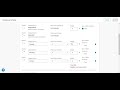
Gradebook Categories in Achieve Course Quiz

Interactive Video
•
Instructional Technology
•
9th - 10th Grade
•
Practice Problem
•
Hard

Jennifer Brown
FREE Resource
5 questions
Show all answers
1.
MULTIPLE CHOICE QUESTION
30 sec • 1 pt
What is the recommended time to set up Gradebook categories in your Achieve course?
After assigning items in the course
Before assigning items in the course
At the end of the course
It doesn't matter when you set them up
2.
MULTIPLE CHOICE QUESTION
30 sec • 1 pt
Which of the following actions can you perform on Gradebook categories?
Add new categories
Delete all categories
Change the default categories
Make categories invisible
3.
MULTIPLE CHOICE QUESTION
30 sec • 1 pt
What feature allows you to drop a student's lowest grades in a category?
Category sync
Drop lowest grades
Gradebook lock
Weighted categories
4.
MULTIPLE CHOICE QUESTION
30 sec • 1 pt
How can you apply Gradebook categories to multiple assignments at once?
By using the calendar icon
By using the batch actions drop-down
By clicking the sync checkbox
By editing each assignment individually
5.
MULTIPLE CHOICE QUESTION
30 sec • 1 pt
What should you remember to do after editing Gradebook settings?
Click save
Refresh the page
Notify students
Log out of the system
Access all questions and much more by creating a free account
Create resources
Host any resource
Get auto-graded reports

Continue with Google

Continue with Email

Continue with Classlink

Continue with Clever
or continue with

Microsoft
%20(1).png)
Apple

Others
Already have an account?


